Access Service Accounts
It is recommended to create one (or more) service accounts in order to call the Phase Two and Keycloak admin APIs. A service account can be thought of as a special type of user that is associated with each Client in Keycloak, but does not have user status in your application.
This page covers getting a service account working against our APIs. For the underlying open-source Keycloak mechanics — the client credentials grant, role scope mappings, and authenticating with a signed JWT instead of a secret — see Keycloak service accounts and the client credentials grant.
Creating a client
Each OIDC client has a built-in service account which allows it to obtain an access token. You can create an configure such a client in the Client section by selecting the Create client button. This will guide you through a wizard to set up your client. The important values to choose are:
- Client ID use a value that indicates to you this is to be used for API access. E.g.
api-client - Client authentication must be set to On
- Service account roles must be selected.


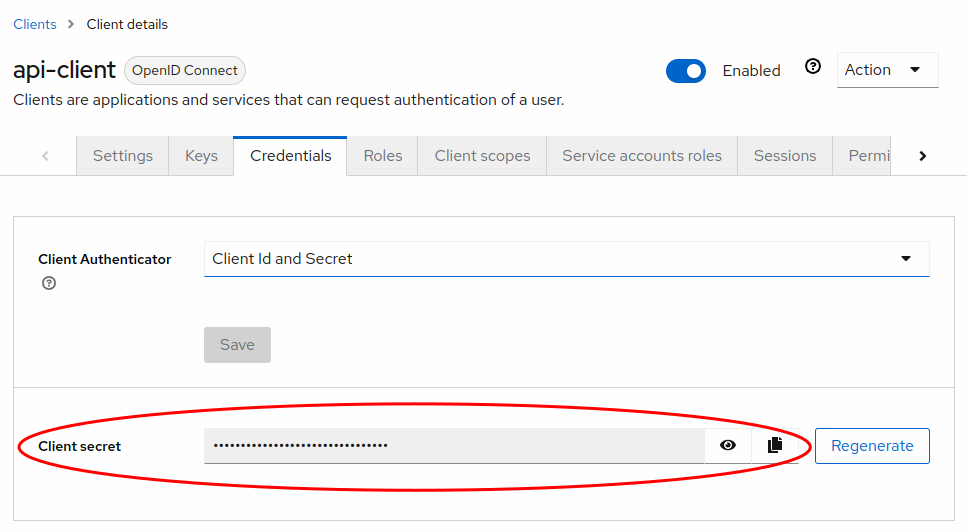
Once you have set up the client, find your Client secret in the Credentials tab of the client you just created. Copy and save it for later use.
Mapping roles
There will be a Service accounts roles tab in the client. Select this in order to grant roles to the service account user. The Assign role button can be used to find roles to grant. The roles you select will likely be found by selecting Filter by clients and looking for roles in the realm-management client.

The roles you grant to the service account user, will be dictated by how you intend to use the API. If you will just use it to look up users, you will only need to grant the view-users and query-users roles. If you are using it to manage organizations you will need to grant the view-organizations, manage-organizations, view-users and query-users roles. A full matrix of roles is beyond the scope of this document, but more information can be found in the Phase Two API and the Keycloak Admin REST API documentation.
Moving integrations off password logins
A common starting point is a backend service that calls the Admin API by signing in as a user, often a shared admin account, through the admin-cli client and the password grant (grant_type=password). It works, but it has three problems in production:
- It keeps the password grant on.
admin-cliaccepts passwords for any user in the realm, not only your integration's account, so the token endpoint stays open to credential stuffing. No CAPTCHA or second factor can protect it. See Sign-in Methods, Grant Types and Clients. - Attackers can lock your integration out. Brute force detection counts failed logins per user. When an attacker tries passwords against the same admin account your service uses, the account is temporarily disabled and your service's own logins fail with it.
- It carries too much privilege. A shared admin account usually holds
realm-admin, so a leaked password or token can do anything in the realm.
A service account fixes all three: the client authenticates with its own secret, no user account is involved, and it holds only the roles it needs. To move an integration without an outage:
- Create the client as described in Creating a client, with Client authentication on, Service account roles selected, and Standard flow and Direct access grants off.
- Grant only the roles the integration uses. For example, a user sync job that reads and updates users needs
view-users,query-usersandmanage-usersfromrealm-management, notrealm-admin. A service account with onlyview-userscan list users but gets403when it reads clients or creates a user, which is the shape you want. - Deploy the integration using the client credentials grant, with
grant_type=client_credentials,client_idandclient_secret. The client credentials grant does not return a refresh token. Request a new access token when the current one is about to expire. - Verify the new path in production. Confirm the integration gets tokens from the new client and that its Admin API calls succeed, for example from
CLIENT_LOGINevents or your integration's logs, before changing anything else. - Turn off the password grant. Disable Direct access grants on
admin-cliand any other client that had it on, and enforce it with a client policy. Any caller you missed now getsunauthorized_client, which tells you exactly what is left to move. - Retire the shared account's password, or the account itself if nothing else uses it, and give the people who need admin access their own accounts with a second factor.