Enterprise SSO
The goal of enterprise SSO is to allow corporate or other organization users to securely access all of the applications and resources available to them with a single authentication. Support for SSO in this context is allowing organizations to use their own identity providers to authenticate with your application.
Configuring SSO
This section isn't a full treatment of SSO, but is intended to provide an example setup for using organizations' SSO providers as part of your authentication flow.
Identity provider setup
There is a section dedicated to identity provider setup that will be helpful to review here. We will assume you can use one of the methods documented there to set up a connection. This will be either working with an admin at your customer's organization, or allowing them to create the connection using our SSO wizards.
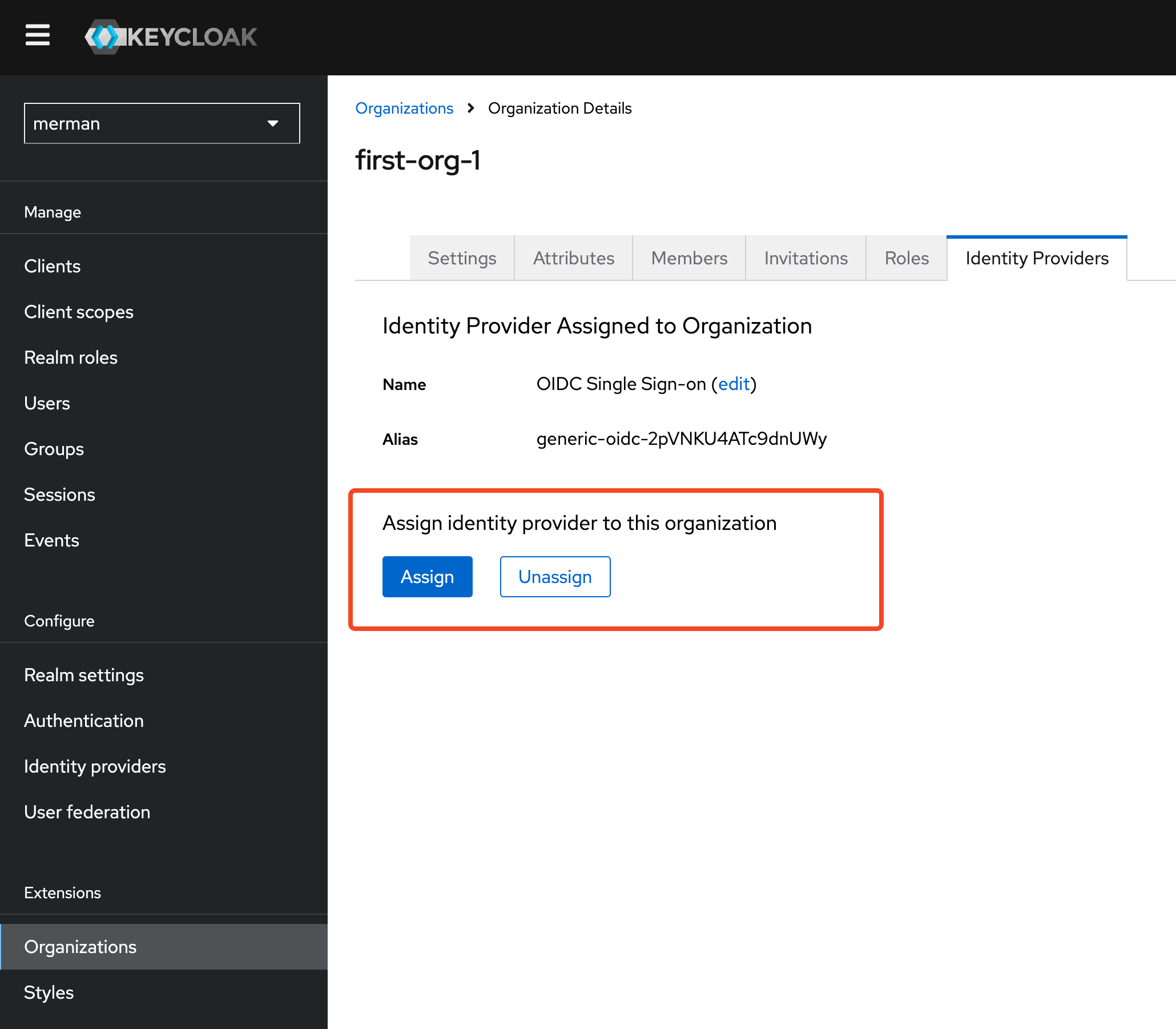
Once the identity provider setup is complete, note the alias in the Identity providers section.
Organization setup
In the Organizations section, create a new organization or navigate to an existing one. In the Identity Provider tab of that organization, select the alias of the identity provider you created that you wish to associate with the organization.

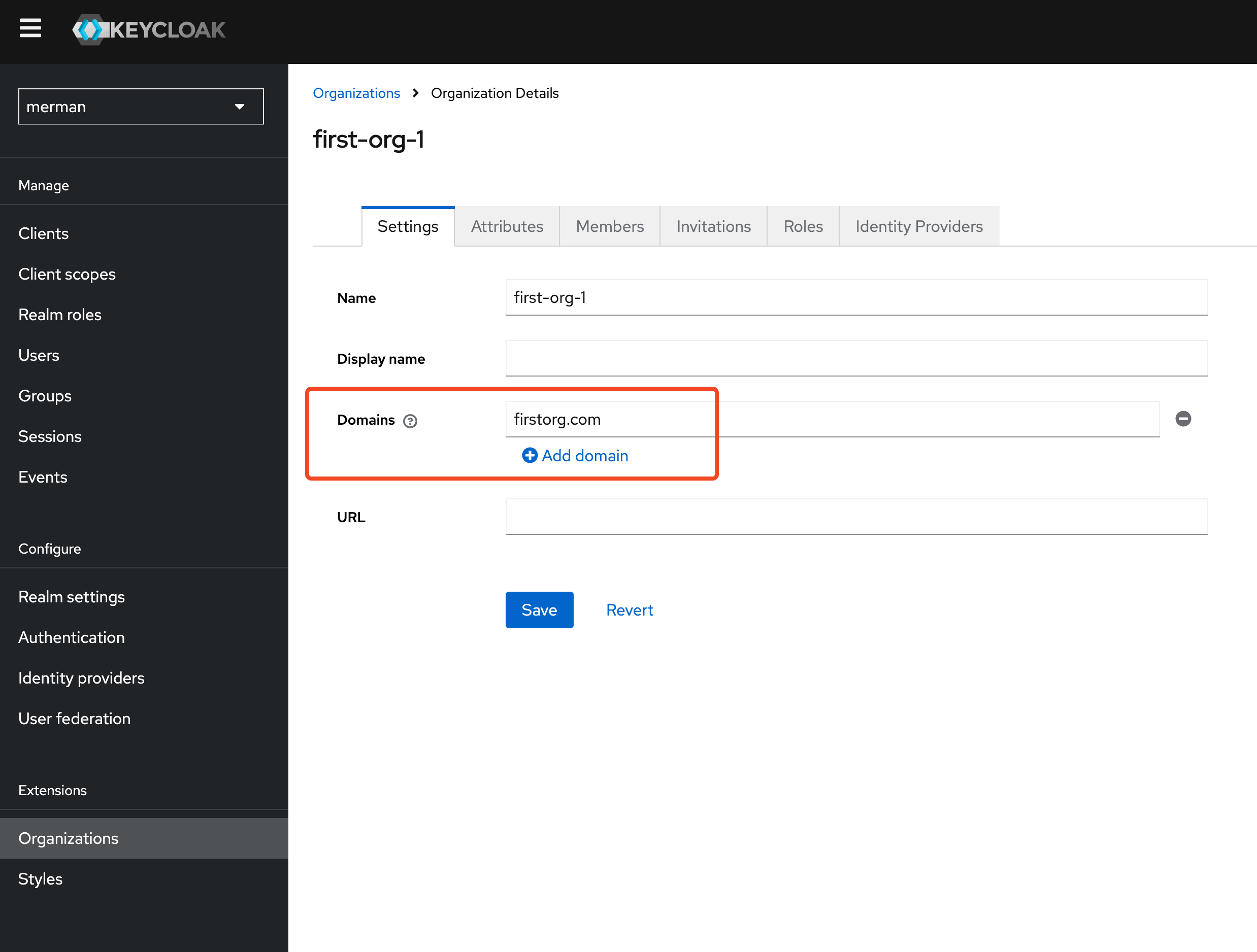
In order to restrict the use of the identity provider to specific email domains associated with this organization, go to the Settings tab for the organization and add email domains owned by the organization.
Flow
To send users to their organization's identity provider based on their email address, the browser flow needs to ask for the email first and then look up the matching organization. This is done with two steps:
- Username Auth Note Form asks for the user's email address.
- Home IdP Discovery matches the email's domain against your organizations' verified domains, and redirects the user to the identity provider associated with the matching organization. If there is no match, the flow continues, for example to a password form.
Automatic IdP Redirection walks through building this flow step by step. Once it's built, bind it to the Browser flow from the Action menu of the flow.
Login UI
After binding the flow to the Browser flow, reload your login screen. At first there is only a field for the email address. If the email belongs to one of an organization's verified domains, the user is redirected to the organization's identity provider. Otherwise, they continue with the rest of the flow, such as entering a password.
If your application already knows which identity provider a user should use, it can skip the email step by passing the provider's alias in the kc_idp_hint parameter. See SSO Without Auth.