WebAuthn
WebAuthn is a web standard for password-free login. At it's core, it is a browser-based API that allows for web applications to simplify and secure user authentication by using registered devices (phones, laptops, etc) as factors. It uses public key cryptography to protect users from advanced phishing attacks.
Most modern browsers support WebAuthn, and there are currently many technologies that can be used. External devices such as Yubikeys, integrated software and hardware such Apple and Google Passkeys, and even all-software implementations are all examples.
If you are specifically looking for how to use passkeys for either passwordless login or as a second factor, see Passkeys.
Configuring WebAuthn
It is possible to use WebAuthn both as a second factor (2FA), in addition to username-password, or as a replacement for the password (so-called "passwordless"). We'll describe configuration for both here.
2FA
Required action
Prior to authentication setup, go to the Required actions tab and enable the Webauthn Register action. If you wish to make it mandatory that your users set up a WebAuthn device, also turn on Set as default action.

Flow
Use of WebAuthn for is similar to how we used one-time passcodes in the previous section. We'll start by duplicating the browser authentication flow we used there. In the Flows tab, duplicate the browser flow. Name it something like webauthn 2fa.
Delete the OTP Forms step, and replace it with WebAuthn Authenticator. Make sure it is set to Required

Login UI
After binding the new flow to the Browser flow, go back and reload your login screen. It will be a normal username and password entry screen. Following username-password authentication, if you have set Webauthn Register as a required action, the user will be prompted to set up their WebAuthn device.
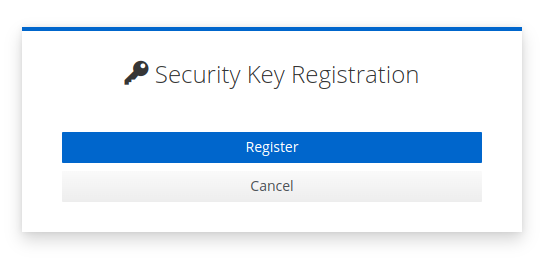
The user can potentiall have multiple device choices, based on their device and previous configurations. Depending on the type of device the user selects, they will be prompted by the browser to validate that they wish to use this device with the application. This example is for a hardware security key.

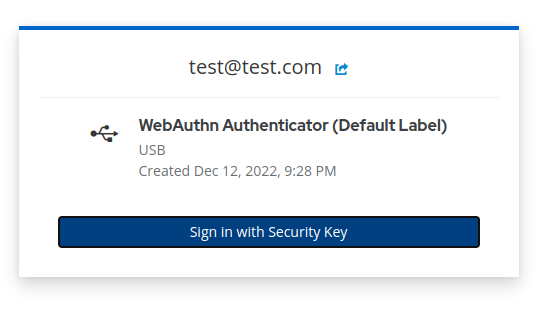
The browser will also prompt the user to create a label for the device, which allows easy recognition of which device they used in future sessions (e.g. "My Blue Yubikey").

That label will be used when the user is challenged on previous authentication attempts to prompt them to provide that device as a second factor.
Passwordless
Because of the superior security inherent in many devices, it is becoming popular to use WebAuthn as a replacement for passwords.
For most realms, you do not need this hand-built flow. The Enable Passkeys setting under Realm settings → Login adds passkey sign-in to the standard login page and keeps the password field as a fallback. See Passkeys.
The flow below removes the password from the login page entirely. Use it only when you have deliberately decided to go passwordless, and give users another way in, such as a magic link as an alternative step, so that a user whose passkey fails is not locked out. See When a passkey doesn't work.
Required action
Again, prior to authentication setup, go to the Required actions tab and enable the Webauthn Register Passwordless action. If you wish to make it mandatory that your users set up a WebAuthn device instead of using a password, also turn on Set as default action. That forces every user to register before they can continue, so consider prompting users with an application-initiated action instead; see Getting users to enroll.

Flow
In the Flows tab, duplicate the browser flow. Name it something like webauthn passwordless.
- Delete the Username Password Form and replace it with Username Form. Make it Required. This will allow collection of only the username or email before the WebAuthn challenge.
- Delete the Conditional OTP sub-flow.
- In the forms section, below the Username Form, add the WebAuthn Passwordless Authenticator step. Make it Required.
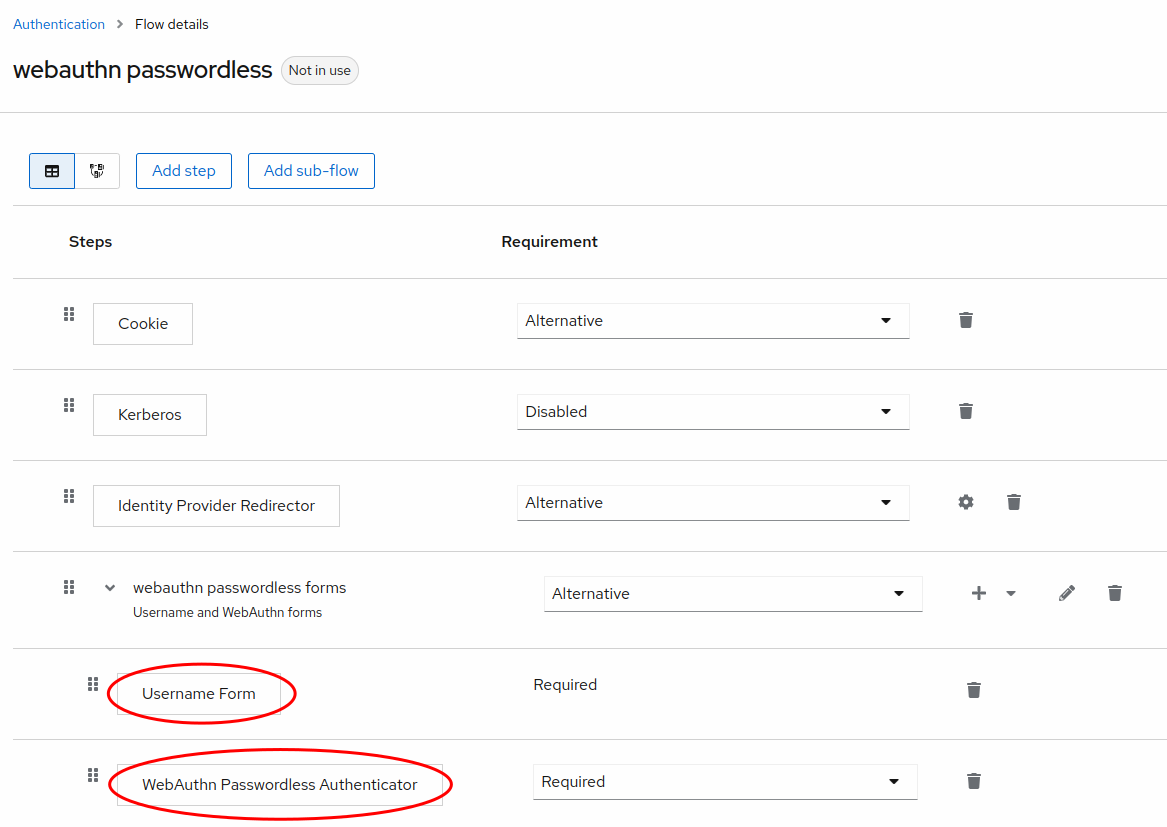
Note that this flow makes an assumption that the user has registered a WebAuthn device on registration, or by previous requirement. If the user has not done so, this flow will not allow them to authenticate.
Login UI
After binding the new flow to the Browser flow, go back and reload your login screen. You will see that there is only a field for the username or email address, and the password field is gone.
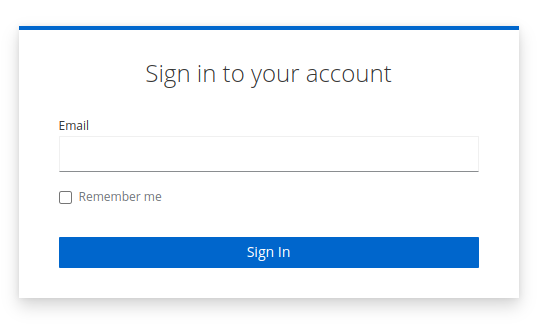
Once a user enters the email address or username of an existing user with a WebAuthn Passwordless device setup, the next step is a prompt to use that device to complete authentication.
